Installing Jisti-meet

- Log in to AmberPRO OS as admin. Go to PRO Tools then App Store.
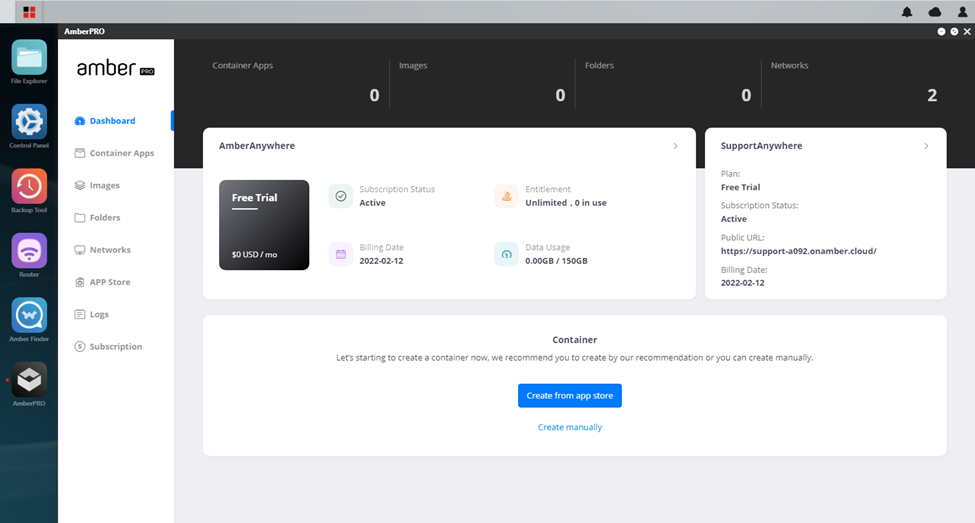
- Scroll down to Jitsi-meet. Click on install.
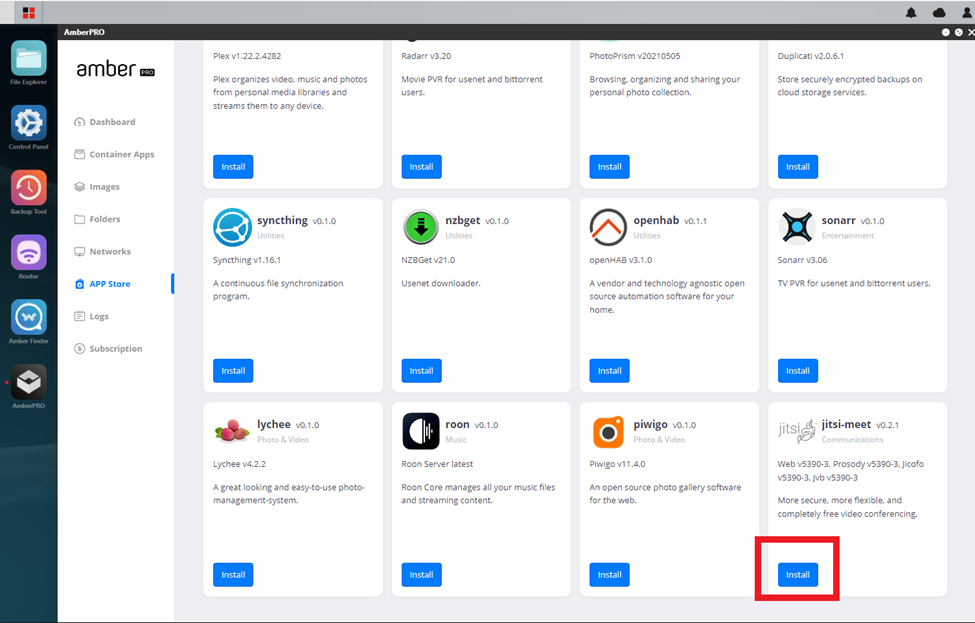
- Wait until finished. Click on Manage it or Container Apps on left-side menu.
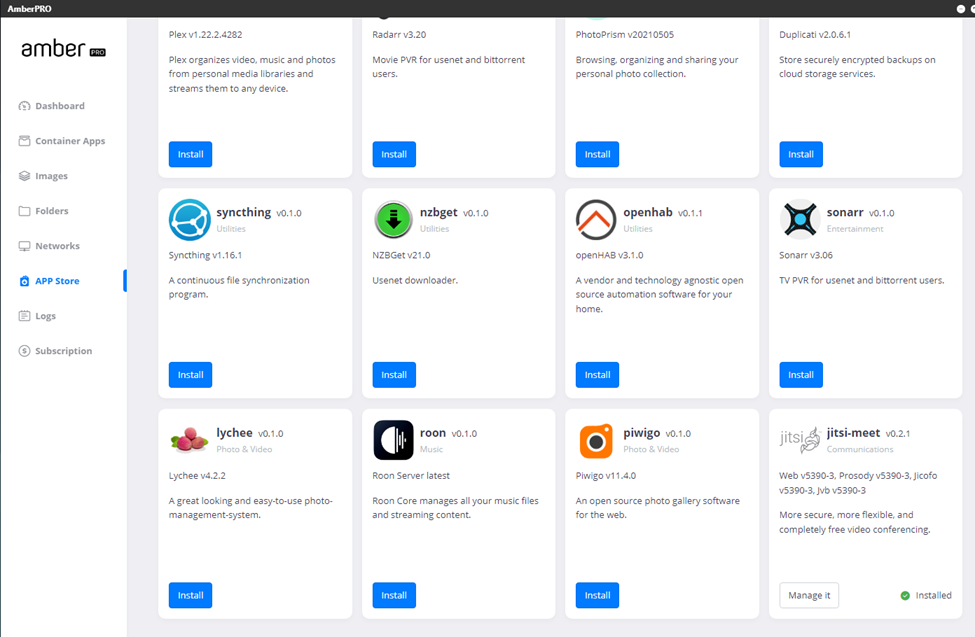
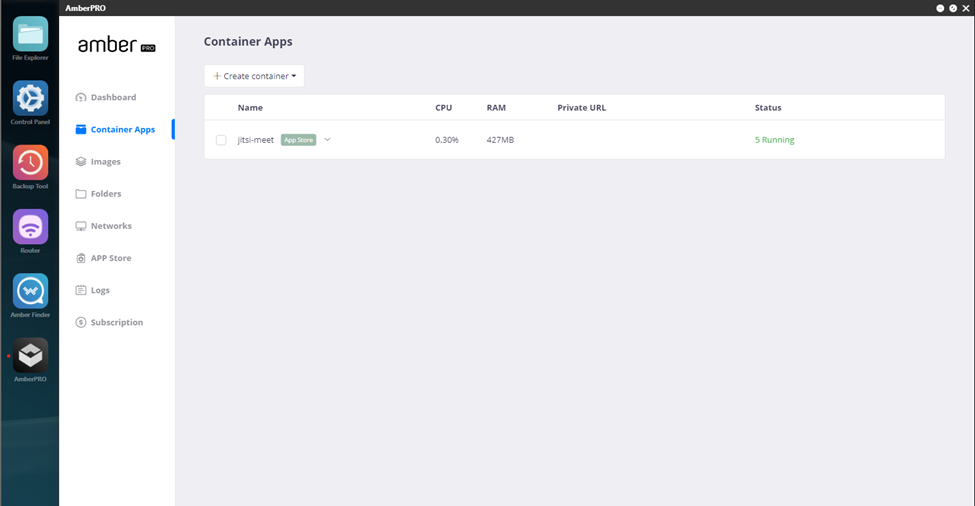
- Click on the drop-down menu next to the container, click on view all, and choose either link. Note: one is for http, the other is for https. Check container details for more information.
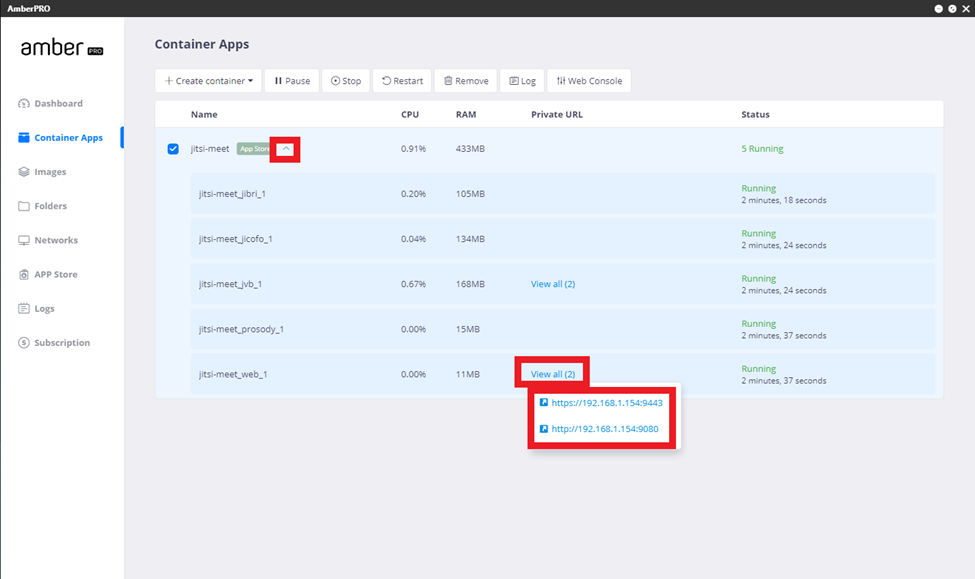
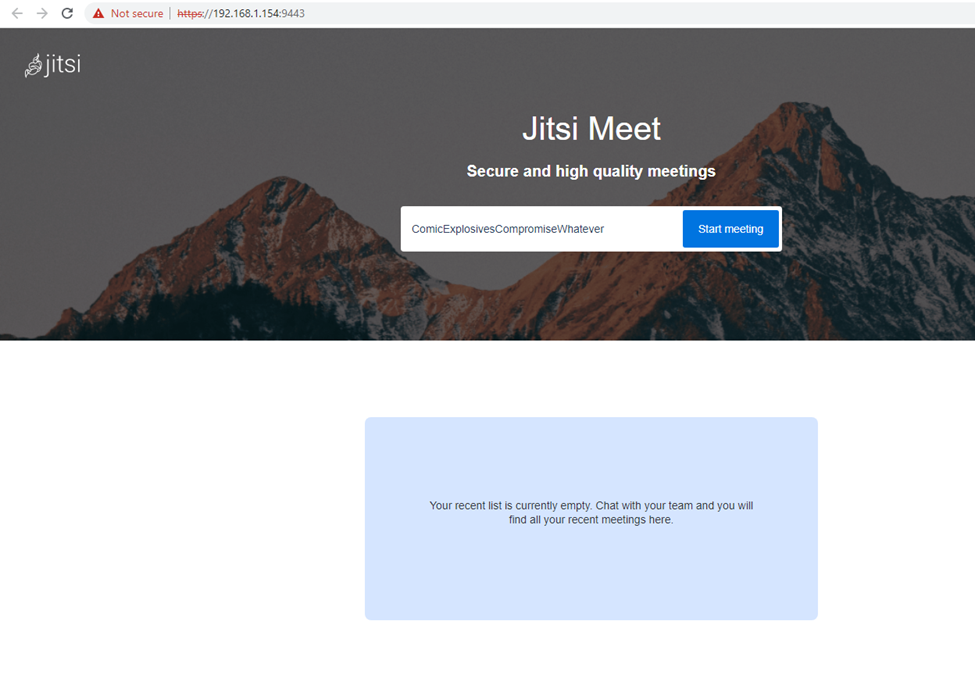
- The URL will be https://your-amberpro-ipaddress://9443 for https. For http, the port address is 9080.
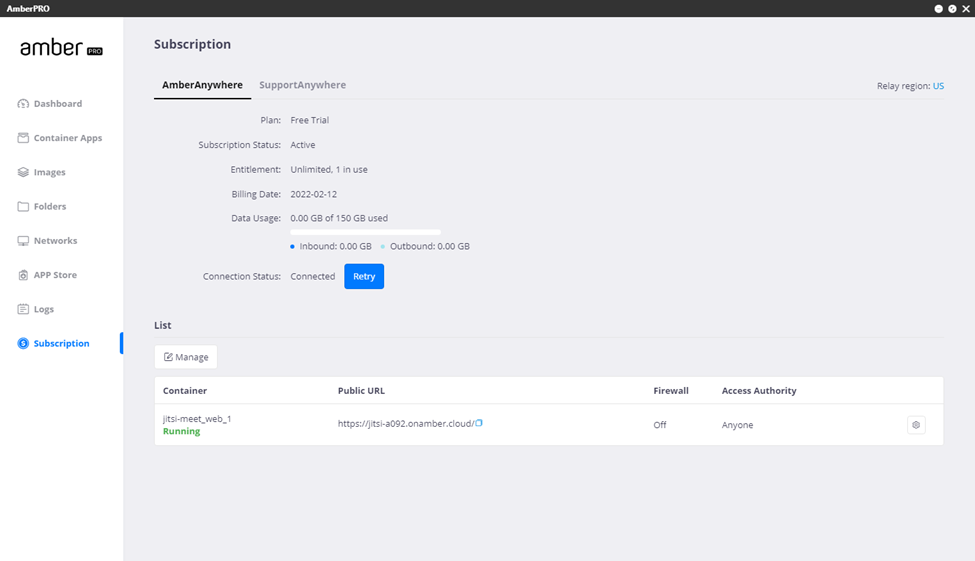
- Click on Subscriptions. Click on AmberAnywhere to copy link URL.
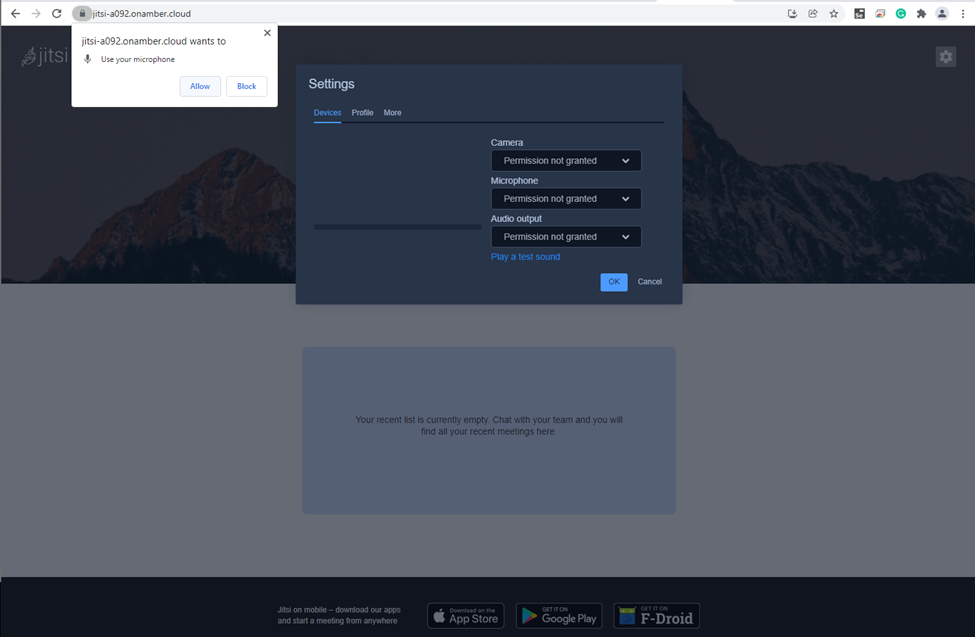
- Click on the gear icon on upper right to set up meeting. Allow permissions in browser. Enter in Camera, Microphone, and Audio output settings.
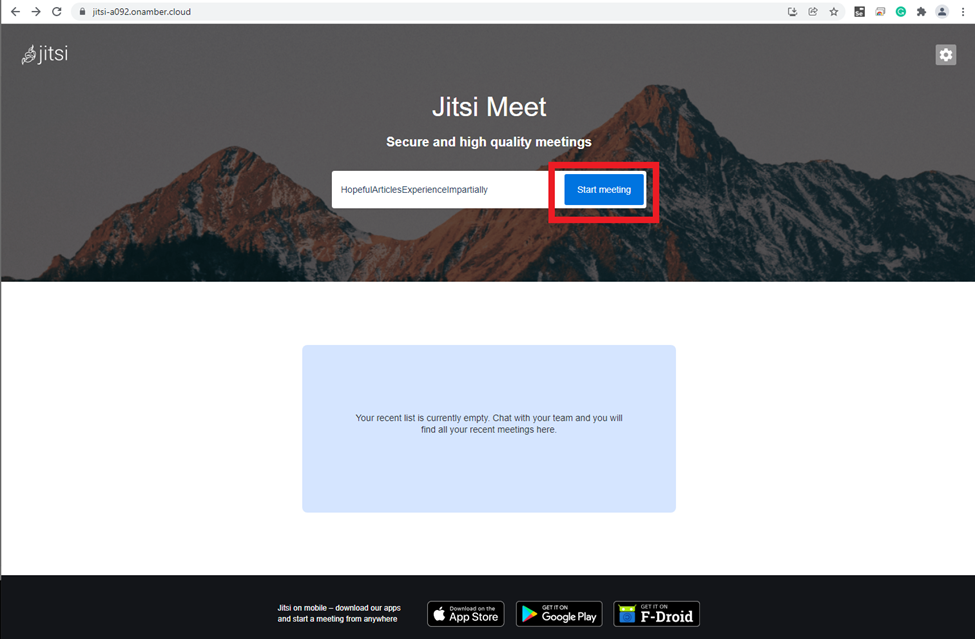
- Click on Start Meeting. Change default name if applicable.
- Adjust meeting parameters accordingly to suit your teleconference call.
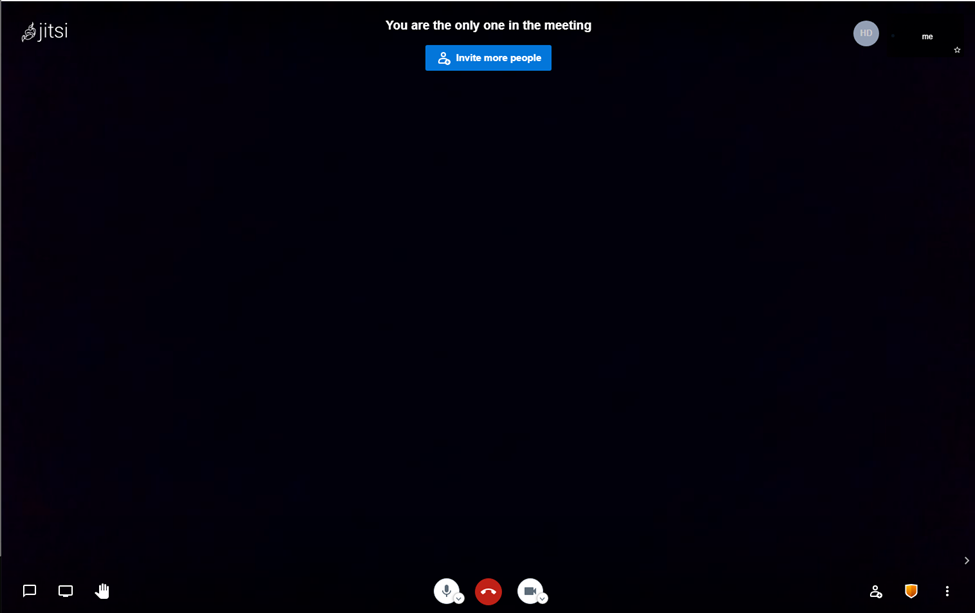
Note: camera is blocked in this demonstration.